Open a Data Set
Click on the Open button and select the required file. These can include:
- an ndCurveMaster program file,
- a CSV file,
- an Excel XLSX file,
- an Excel XLS file,
- a Text file.
You can also click on the "Reopen" button to select previously loaded files.
This will open the Input Data window:
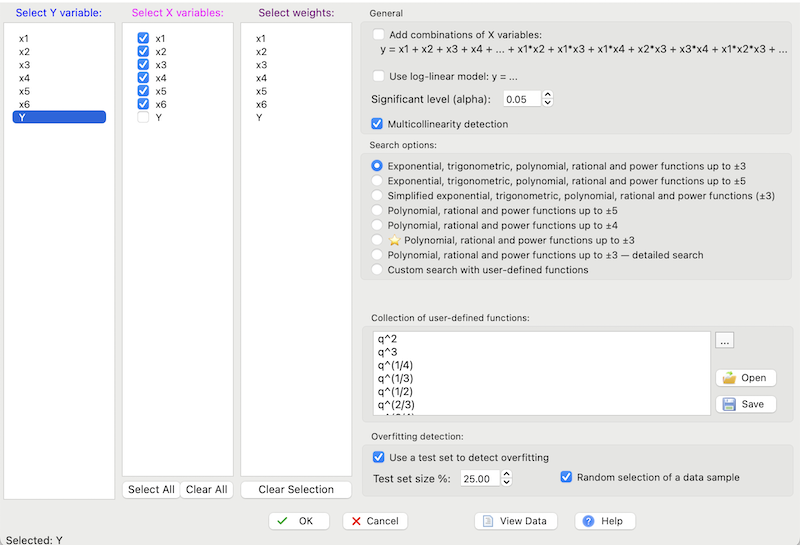
In this window, you can select:
- Y and X variables,
- weight data for individual data points in any column,
- the "Add combinations of X variables" option to add combinations of input variables, such as:
x1*x2, x1*x3, x1*x4, x2*x3, x2*x4, x3*x4 ...,x(n-1)*xn
- the "Use log-linear model" option to use natural log values for the dependent variable (Y) and keep the independent variables (X) in their original scale,
- the significance level alpha,
- the "Multicollinearity detection" option to detect multicollinearity in the model by calculating the VIF factor1 (more information can be found here),
-
The search options are as follows:
- Exponential, trigonometric, polynomial, rational and power functions up to ±3 — includes exp, trig, polynomial, rational and power terms up to degree ±3 (see the function list here). Trigonometric inputs are in radians.
- Exponential, trigonometric, polynomial, rational and power functions up to ±5 — extended to degree ±5 (see the function list here).
- Simplified exponential, trigonometric, polynomial, rational and power functions (±3) — a compact core subset up to degree ±3 (see the function list here).
- Polynomial, rational and power functions up to ±5 — only polynomial/rational/power terms up to degree ±5 (see here).
- Polynomial, rational and power functions up to ±4 — only polynomial/rational/power terms up to degree ±4 (see here).
- ⭐ Polynomial, rational and power functions up to ±3 — only polynomial/rational/power terms up to degree ±3 (see here).
- Polynomial, rational and power functions up to ±3 — detailed search — only polynomial/power terms up to degree ±3 with detailed search controls (see here).
- Custom search with user-defined functions — uses the collection from “Collection of user-defined functions” (details here).
- "Overfitting Detection" option and test set size in percent to detect overfitting by using the test set method (details can be found here).
Then, click OK.
1 Selecting this option is not recommended for processing an extremely large data set when using a low-performance computer.